Showing posts with label Quick Fix. Show all posts

How to fix MSVCR100.DLL is Missing


This msvcr100.dll is the Microsoft Visual C++ Redistributable dll that is needed for projects built with Visual Studio 2010. The dll letters spell this out. 

MS = Microsoft
V = Visual
C = C++
R = Redistributable


When starting some applications or games like angry birds and fruit ninja for PC this error may occur. But don’t worry. Here is an easy solution to fix MSVCR100.dll missing error. Download and Install the files below depending on your operating system version and you can start your application or games.


Microsoft Visual C++ 2010 Redistributable Package (x86)

How to disable store demo mode in Samsung LCDTV


What is Store Demo Mode or Shop Mode?

Essentially, Shop Mode or Store Demo Mode returns the TV automatically to its default settings in thirty minutes. It is usually used by retailers who want to demonstrate functions to customers, and then want the TV to return to its default settings without the bother of manually resetting the TV.

Easy FIX in removing your Samsung LCDTV from Shop Mode or Store Demo Mode. First, confirm your TV is in Shop Mode or Store Demo Mode:

1. Press the INFO button on your remote control. A list of settings appears.
2. See if the Picture Mode setting is set to Shop Mode or Store Demo Mode.

There are three methods for removing your TV from Shop Mode or Store Demo Mode. If the first method does not work, try the second or third method.

Method 1
  1. Press the Volume button on the side panel of your TV. If your TV does not have a side panel, press the Volume button on the front panel. The TV displays the volume bar.
  2. Press the Menu button on the side panel of your TV for about seven seconds. Again, if your TV does not have a side panel, press the Menu button on the front panel. If Dynamic or Dynamic Mode is displayed on the screen, your TV has been removed from Shop Mode or Store Demo Mode.
Method 2
  1. Press the Volume button on your remote. The TV displays the volume bar.
  2. Press the Menu button on the side panel of your TV for about seven seconds. Again, if your TV does not have a side panel, press the Menu button on the front panel. If Dynamic or Dynamic Mode is displayed on the screen, your TV has been removed from Shop Mode or Store Demo Mode.
Method 3
  1. Press and hold the Volume button on your TV. The TV displays the volume bar.
  2. As you are holding the Volume button, press the Menu button on the side panel of your TV for about seven seconds. Again, if your TV does not have a side panel, press the Menu button on the front panel. If Dynamic or Dynamic Mode is displayed on the screen, your TV has been removed from Shop Mode or Store Demo Mode.
Note: You may want to press the INFO button on your remote again to confirm you TV is no longer in Shop Mode or Store Demo Mode.

Source: Neowin

Logon failure: user account restriction FIX


Did you try to run an application as administrator but upon clicking, this error appear? "Logon failure: user account restriction. Possible reasons are blank passwords not allowed, logon hour restrictions, or a policy restriction has been enforced." try the solution below and see if it's fix the error.

Error


"Logon failure: user account restriction. Possible reasons are blank passwords not allowed, logon hour restrictions, or a policy restriction has been enforced."

Solution Fix
Follow this steps

1. go to RUN(win+r) type regedit.exe
2. then go here HKLM\System\CurrentControlSet\Control\Lsa
3. change the value of  "LimitBlankPasswordUse" from 1 to 0 (just double click)
4. close the registry editor and try again to run your application.

How to Remove Bios Password for Acer Laptops


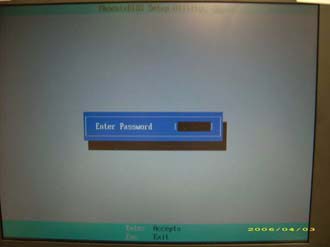
If you key in the wrong Supervisor password three times, an error code is generated and system is disabled like in the image below.

To unlock the BIOS, perform the following steps:
   1. On a different machine, run the BIOS_PW.EXE file along with the error code generated. For example:
        bios_pw 14452 0
   2. Four ASCII strings are generated as output. Select and note down any one of the strings.

   3. Reboot the machine with the locked BIOS and then use either any of the strings as the BIOS user
       password.

Solution on Linksys WRT120N won't Reset problem


Did you forgot your Linksys WRT120N Wi-fi password? or your router log-in password? or did you mess up the router setting and no other choose but to hard reset the router? luckily your linksys WRT120N router reset button is not working! No matter how many times you press and hold the reset button the router just wont reset.

The problem is your Linksys WRT120N router have an old firmware. Your only solution here is to upgrade your router firmware, you can download here and then follow this steps.(note: this solution is useful if your reset button is not working)

Solution:
  1. Power ON the router while holding the reset button. (the router boots but just the power LED is on) now, connect the UTP cable to port #1 (notice that the LED for port #4 is on)
  2. After 30 to 60 seconds open a web browser and type in the address bar 192.168.1.1 to connect to router bootloader.
  3. Then a router bootloader will appear that allows you to upload a new firmware. Navigate to the location of the latest firmware you download and click upload, wait for 1 to 2 minutes then restart the router using the restart button present on the same page(or turn OFF then ON the router)
  4. When it is fully up press and hold the reset button for 5 sec and the LED flash.
  5. Power OFF the router then power ON and your router is now reset to factory default.

How to remove PDF restriction


Did you recently download a PDF files with restriction such as printing, copying text, etc. Do you wish to remove its restrictions?

You can easily remove PDF restrictions with FreeMyPDF.com. FreeMyPDF is a website that can remove printing, copying, editing restrictions from PDF files. FreeMyPDF is free and doesn’t required to sign-ups.

Just upload PDF files to FreeMyPDF.com and click Do it button, after a while PDF file restrictions will be removed and you will get a download dialog box. then save the unlocked PDF to your PC.

Note that this only works for PDFs that you can open and read without any 3rd party plugins. PDFs that require a password to be viewed cannot be unlocked by this service. This is because this is not cracking. Viewable PDFs with restrictions are not really protected, no more than a door with a broken lock, as opposed to password-protected PDFs.

Free and Portable Repair Tools


Here are some of Portable, Free and Useful Tools that I used in different type of computer problems. That might be also useful to you.

Advisor  – A computer diagnostic tool  that show a detailed profile of your installed software and hardware, missing Microsoft hotfixes & anti-virus status.

ATF-Cleaner – Simple tool that removes files from your temp folder, like cookies and temp files

Autoruns – This utility shows you what programs are configured to run during system bootup or login, and shows you the entries in the order Windows processes them. similar to the run command “msconfig” but much more advanced; you used to turn off programs from running on startup.

BlueScreenViewer – Scans all your minidump files created during 'blue screen of death' crashes, and displays the information about each and every crashes. When your computer gets the BSOD (blue screen of death) it creates a log file. This program is great at making it very readable and understand what caused the bluescreen.

CCleaner – a tool similar to ATF-cleaner but much more advanced and actually needs installing. ATF-cleaner runs straight from an executable

CPU-Z - a freeware system monitor application for Windows that detects the central processing unit, RAM, motherboard chipset, and other hardware features of a modern personal computer, and presents the information in one window.

FixWin – a small application that repair & fix common Windows annoyances & issues. Similar to Dial-A-Fix but that only works with XP. This tool works with Vista and I believe Windows 7 as well

GMER – a good program that detects and removes rootkits.

HiJackThis – a free utility that scan your computer to find settings that changed by spyware, malware, or other unwanted programs.

HitmanPro35 – a Free utility that Detect and Clean virus, adware, malware, rootkit, bot, worm and trojan infection. Plus it is always updated

Mbam-clean – sometimes Malwarebytes gets corrupted by a virus as well and this is a great tool that removes it completely so it can be installed at a later time without issues

MCPR.EXE – McAfee Products removal tools

Norton Removal Tools – completely removes everything Norton AV related; very useful tool

Process Explorer – if you have seen Windows Task Manager this is what it is but it says a LOT more information and has a lot more functionality; fairly simple to use.

Remove Fake Antivirus – good for removing rogue AntiVirus which are fake AVs that try and steal your identity; NEVER CLICK “BUY NOW” on an AV menu without googling the name first to see if its legit

Revo Uninstaller – great program that works like add/remove in windows but much better and easier to use

RKill - got a lot of popups saying your computer is infected and can’t get them off? Run this tool to kill practically everything until you restart your comp; after running this run malwarebytes or hitmanpro or some sort of AV scanner

TDSSKiller – Rootkit removal tool that I used and it’s constantly updated.

WinsockxpFix – If you have an unexplained network problem after removing software use this. A last resort if your Internet connectivity has been corrupted due to invalid or removed registry entries. It can often cure the problem of lost connections after the removal of Adware components or improper uninstall of firewall applications or other tools that modify the XP network and Winsock settings

Terminate active Malware with RKill


Malware this days are getting smarter and harder to remove, some malware infections will detect that you have launched an anti-malware tool such as MalwareBytes and close it down as soon as you open it, which makes malware removal much harder. This is the exact situation Rkill is designed for.

Rkill is a freeware and portable tool designed to terminate active malware processes allowing you to use other removal tools. Rkill is made by Lawrence Abrams.

RKill just kills processes, imports a Registry file that removes incorrect file associations and fixes policies that stop us from using certain tools. Then it kills Explorer.exe so it will restart and enable some of the Registry changes. When done, RKill will then create a log listing all processes that were terminated while the program was running. 

Since RKill only terminates processes, after running it you should not reboot your computer as any malware processes that are set to start automatically, will just start up again. Instead, after running RKill you should scan your computer using your malware removal tool of choice (MalwareBytes' Anti-Malware, SuperAntiSpyware, and Dr.Web CureIt)

Rkill is available in 4 different extensions. An .EXE, .COM, .SCR and a .PIF file. The reason why is because some malware will block .EXE files in an attempt to prevent you from running other malware removal tools, so this gets around that problem.

Downloads

Note: When you run RKill you may see a message from the malware stating that the program could not be run because it is a virus or is infected. Ignore it and try to run Rkill with different extension. If it fails try to boot in Windows SafeMode then try again. And if it also fail try to run COMBOFIX in safemode and see if can remove that nasty malwares installed on your PC.

How to uninstall Deep Freeze


Deep Freeze from Faronics is an excellent program for Internet cafe that saves you from headache and hassle of reformatting your PC every time your PC encounter problem. 


But if you want to remove deep freeze, Here are the steps on how to uninstall  Deep Freeze from the software’s manufacturer site. But first you have to Disable Deep Freeze before uninstalling it.

To disable Deep Freeze:
  1. Hold down the shift key and double-click the Deep Freeze icon. Alternatively, you can press CTRL+ALT+SHIFT+F6.
  2. Enter your password and click OK.
  3. If you have not yet entered a password you should be able to click OK without entering a password.
  4. The Boot Options dialog is displayed. Select "Boot Thawed" and click OK. This will disable Deep Freeze on the next reboot.
  5. Reboot your computer. After the computer reboots, you are ready to uninstall Deep Freeze.
To uninstall DeepFreeze:
  1. Locate the installation file you used to install Deep Freeze on your computer. By default, the name of this file is called "DF5Std.exe" for versions 5.X and "DF6Std.exe" for versions 6.X.
  2. Run the installation file (DF5Std.exe or DF6Std.exe).
  3. Select the option to "Uninstall"
Deep Freeze is uninstalled and your computer is rebooted.

What to do if you forgot your password?

There are no backdoor passwords to Deep Freeze. Faronics cannot recover lost, forgotten, changed, or otherwise misplaced passwords or Customization Codes.

For Deep Freeze Enterprise:


Using our unique One Time Password system, Deep Freeze Enterprise Administrators can generate One Time Passwords (OTP). To generate an OTP:
  1. Open the Deep Freeze login dialog on the workstation for which you need to generate the OTP.
  2. Write down the Token code which is located at the top of the login dialog.
  3. Open the Deep Freeze Configuration Administrator and click the One-Time Passwords tab or open the Enterprise Console and click on Tools > One Time Password.
  4. Enter the code you recorded into the Token field and click Generate OTP. Another code will appear in the OTP field. The second code is the password for the workstation.
The newly generated One-Time Password can then be used to disable, uninstall, and re-install Deep Freeze with the correct password.

For Deep Freeze evaluations
(with no License Key entered):
  1. Restart the computer.
  2. Enter the system BIOS settings.
  3. Advance the clock by at least 60 days and then restart your computer. This will disable the software.
  4. After the system has started, run the Deep Freeze installation program to uninstall Deep Freeze.
  5. After the computer reboots, re-enter the BIOS and reset the clock to the current date. You can then  re-install Deep Freeze after restarting.
If you are running a licensed copy of Deep Freeze Standard please contact Faronics Technical Support at Toll Free: 800-943-6422 or Tel: +1 (604) 637-3333 with your license information so that a support case can be opened on your issue.

How to Remove Fake Antivirus


Remove Fake Antivirus or RFA  is a free tools used to remove the most popular Rogue antiviruses. Rogue AV is a type of virus/malwares which disguises itself to be an antivirus. It infects your computer when you accidentally click a link in a website which will download the malware into your computer and run automatically when your windows boot. It scan the infected computer and produces fake alert warnings. It convinces you that your computer is in danger and urge you to purchase a copy of the fake antivirus. 

Here's a list of Rogue AV that can remove by RFA (Remove Fake Antivirus v1.69)
  • Additional Guard
  • Alpha Antivirus
  • Antivir 2010
  • Antivirus 2009
  • Antivirus 2010
  • Antivirus 360
  • Antivirus 7
  • Antivirus 8
  • Antivirus BEST
  • Antivirus GT
  • Antivirus Live
  • Antivirus Pro 2009
  • Antivirus Pro 2010
  • Antivirus Soft
  • Antivirus Suite
  • Antivirus System Pro
  • Anti-Virus-1
  • Braviax
  • CleanUp Antivirus
  • Control Center
  • Cyber Security
  • Defense Center
  • Desktop Defender 2010
  • Digital Protection
  • FraudTool.MalwareProtector.d
  • Green AV
  • IGuardPC or I Guard PC
  • Internet Security 2010
  • Live PC Care
  • Malware Defense
  • Malware Doctor
  • MS Antispyware 2009
  • My Security Shield
  • PC Antispyware 2010
  • Personal Antivirus
  • Personal Security
  • Protection Center
  • Security Antivirus
  • Security Center
  • Security Central
  • Security Master AV
  • Security Tool
  • Security Toolbar
  • Spyware Guard 2008
  • Sysinternals Antivirus
  • System Guard 2009
  • System Security
  • System Security 2009
  • Total PC Defender 2010
  • Total Security 2009
  • Total XP Security
  • Vista Antivirus Pro 2010
  • Vista Guardian 2010
  • Vista Internet Security 2010
  • Vista Security Tool 2010
  • Windows Enterprise Suite
  • Windows Police Pro
  • Windows Protection Suite
  • Windows System Suite
  • WinPC Defender
  • Winshield2009.com
  • XP Guardian
  • XP Internet Security 2010
  • XP Smart Security 2010
  • Your PC Protector
Download

If this doesn't solve your problem try to this solution then scan with Kaspersky Virus Removal Tools.

Reset windows user password without prompted for the old one

Do you want to reset a windows user password without prompted for the old password? You maybe thinking if its possible, because whenever you have tried to change the password from the control panel, Windows prompted for the old password. So here is a trick that let you reset the password of Windows User Account without being prompted for the old one.

Enter in Command Prompt: Press Win Key+R and type “cmd” and hit enter to open a command prompt.
In the command prompt type “net user” and hit enter. This command will show all the users account of the computer.

Changing the Password: if you want to change a user password (ex. Guest user account )
type net user guest * and hit enter
Upon hitting the Enter key you will be prompted to enter a password for the user account. Note that the  asterisk(*****) is not visible here. Put you password  and hit “Enter“. You have to retype the password again for confirmation.

and you are done! You have successfully reset the password without knowing the older password.

Note: You need to have an Administrator privilege for this trick to work!

Virus Effect Remover


Virus Effect Remover is a tool which helps you to remove the effect of viruses from the Windows Registry and File System. It also detects the registry error caused by viruses and enables the Blocked content like Task manager, registry editor, folder option, etc.This software enables your Admin restricted application and remove the changes which a virus does to protect itself.

It enables :

1: Registry Tools
2: Task manager
3: Group Policy Editor
4: Run command option in start Menu
5: Folder Option in Explorer & Control panel
6: Update check
7: File Menu
8: Find Menu
9: Log Off
10: Task Bar
   

Blocked Porn Sites using OpenDNS

In my previous post i taught on How to Setup OpenDNS as an alternative to our ISP DNS Server. Now by changing the DNS Server addresses you can blocked porn sites to protect your kids against Pornographics Site.

Here's how:

For Microsoft Windows XP, 2000
   1. Open control Panel
   2. click Network Connection
   3. Right click on Local Connection Properties then select Properties
   4. on “General Tab” select Internet Protocol (TCP/IP) then click Properties

   5. Click "Use the Following DNS server addresses"
   6. Change your DNS Server addresses to 208.67.222.123 and 208.67.220.123 and click OK.

For Microsoft Windows Vista and Windows 7
   1. Open Control Panel
   2. Network and Sharing Center
   3. Click on Change adapter Setting

   4. Right Click on Local Area Connection then select Properties

    5. Scroll and double click Internet Protocol Version 4 (TCP/IPVv4)
6. Select Use the following DNS server addresses: and input
Preferred DNS Server: 208.67.222.123
Alternate DNS server: 208.67.220.123

How to Remove "You may be a victim of software counterfeiting"

Do you have this kind of pop-up saying that " You may be a victim of software counterfeiting". Don't panic, relax there are two ways to remove that annoying pop-up, but first lets find out what causes this problem? This problem occurs when you update your windows Xp over the internet and after it will show a notification that say “You may be a victim of software counterfeiting” and “This copy of windows does not pass genuine Windows validation”. The only reason is because you update a non Genuine copy of windows XP. This is called Windows Genuine Advantage or (WGA) it is an anti-piracy system created by Microsoft that enforces online validation of the licensing of several recent Microsoft Windows operating systems when accessing several services, such as Windows Update, and downloading Windows components from the Microsoft Download Center.

OK, here's a two methods to fix this problem.

Method 1: The Long cut!


1. Launch Windows Task Manager. (by pressing Ctrl+Alt+Del keys)
2. Locate the process “WgaTray.exe” and press end task.
3. then restart your pc and Log-in into the Safe Mode by Press F8 before windows boots) and delete the file WgaTray.exe from c:\Windows\System32
4. Delete also WgaTray.exe from c:\Windows\System32\dllcache
5. then Type regedit in Run (Win+R) to open Registry Editor, navigate to
HKEY_LOCAL_MACHINE\SOFTWARE\Microsoft\Windows NT\CurrentVersion\Winlogon\Notify key
6. then Delete the folder WgaLogon and all of its contents.
7. After that Restart the PC normally. and Its done!


Method 2: The shortcut
Just download and run RemoveWGA.exe
and its done!

Fix common Windows annoyances with FixWin Utility

 FixWin is a portable freeware application that repair & fix some of the most common Windows annoyances & issues which maybe faced by a Windows Vista & Windows 7 user.

Some of the problems that can fix by "Fixwin Utility"

   1. Recycle bin icon missing from desktop
   2. Games Explorer is not working or unable to open Games Explorer folder.
   3. Windows Media Player does not show slideshow correctly
   4. Enables folder option.
   5. Fixes show hidden files,folders & drives.
   6. Restore the windows sidebar.
   7. Fixes Recycle Bin icon, when it doesn't refresh automatically.
   8. Explorer.exe won't start at boot in windows.
   9. Device Manager is not working properly.
  10. Aerosnap is not working.

It has been tested on Windows 7 & Vista, 32-bit and 64-bit versions.


FixWin 1.2

Protect your USB Drives from Malware and Trojan

Panda USB Vaccine is a freeware solution designed to protect against malware infections due to autorun feature of Windows OS . It offers a double layer of preventive protection, allowing users to disable the AutoRun feature on computers as well as on USB drives and other devices:

Vaccine for computers: This is a ‘vaccine' for computers to prevent any AutoRun file from running, regardless of whether the device (memory stick, CD, etc.) is infected or not.

Vaccine for USB devices: This is a ‘vaccine' for removable USB devices, preventing the AutoRun file from becoming a source of infection. The tool disables this file so it cannot be read, modified or replaced by malicious code.

This is a very useful tool. This provides users with a simple way of disabling AutoRun feature, offering a high degree of protection against infections from removable drives and devices.

Unmountable Boot Volume BSOD Fix

If you turn on your PC and come across a BSoD stating UNMOUNTABLE_BOOT_VOLUME, don't panic! or attempt to reformat your computer. This is very common issue when running windows OS, and not so very hard to fix. The most common cause of this problem (base on my experience) is improper shutdown .

To resolve this issue, you need an original or untouched copy of windows XP, and  configure the computer to boot from the CD-ROM or DVD-ROM drive and follow this steps.

1. Insert the Windows XP bootable CD into the computer.
2. When prompted to press any key to boot from the CD, press any key.


3. Once you see a welcome screen, press R key on your keyboard. This will bring you into recovery mode with a DOS prompt.

4. Now type chkdsk /p and press Enter. This will launch a utility that will scanned for File System errors.
5. After the process is done, type FIXBOOT and press Enter and hit Y to choose Yes
6. Remove the Windows CD
5. At the command prompt Type EXIT and press the Enter key to reboot your computer.

And your system should now boot normally. This worked for me in most cases.

Instant solution for disable Task Manager


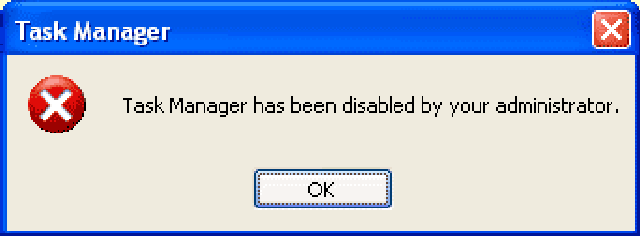
This error message appears due to restriction placed in the Windows Registry. One can easily enable Task Manager by editing some registry settings. But for a normal user editing registry is not easy and a bit risky. Here's where Task Manager Fix comes in a Freeware system utility designed to fix Task Manager disabled by spywares and trojans in a click of a button.

.Source: Official Site

Fix for Special Force Online Hang-up Problem

Did your PC crash or hang-up most of the time but only when playing SF or Special Force Online? Did you try to reinstall the game but still got the same result? Or even try to replaced the RAM and still get no good result?  If your processor is AMD Athlon X2 (Dual-Core) then try this:

1. Download and Install this file: AMD Processor Driver
2. Download and Install this file: AMD Dual-Core Optimizer
3. Restart your PC then try the game.

This works for me!

Track down the cause of BSOD


BlueScreenView is a small, portable and freeware application that scans all your minidump files created during 'blue screen of death' crashes, and displays the information about all crashes in one table.

For each crash, BlueScreenView displays the minidump filename, the date/time of the crash, the basic crash information displayed in the blue screen, and the details of the driver or module that possibly caused the crash.


 Download Here (48kb)
For More Information Click Here
 

PC Mediks Copyright © 2009 BeMagazine Blogger Template is Designed by Blogger Template